
Crackerbarrelsfrontporch.us is an independent employee resource guide — not affiliated with Cracker Barrel Old Country Store.
Cracker Barrel pay stubs are stored in Workday and accessible any time you log in through OneLogin at crackerbarrel.onelogin.com. You do not need to contact HR or the payroll department to view them — every current employee has direct self-service access.

This guide covers how to find your pay stub, what information is on it, how to download it as a PDF, and what to do when a pay stub is missing or the numbers look wrong. If you have not set up your login yet or are having trouble getting in, start with the Cracker Barrel Front Porch employee portal guide first — it covers the full login process, MFA setup, and common account problems.
Where Do Cracker Barrel Employees Find Their Pay Stubs?
Cracker Barrel pay stubs are located in the Pay worklet inside Workday, which you access by logging in through OneLogin. The old Front Porch Self-Service portal at frontporchselfservice.crackerbarrel.com no longer exists — all payroll records moved to Workday in June 2022.
If someone directed you to the old Front Porch URL, bookmark the correct one instead: crackerbarrel.onelogin.com. That is the only active login path for Cracker Barrel employees in 2026.
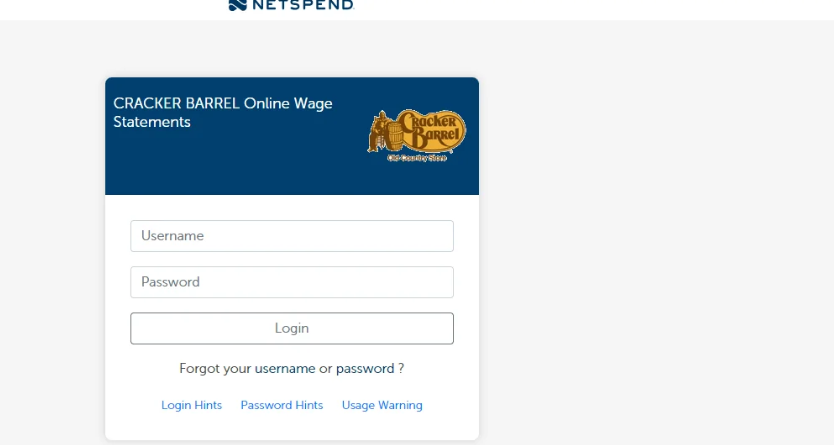
Some employees — particularly at locations using older payroll systems — may find their wage statements at onlinewagestatements.com/cbocs instead of Workday. The Cracker Barrel wage statements and CBOCS page explains how to tell which system your location uses and how to log in to both.
How Do You View Your Cracker Barrel Pay Stub Online?
Cracker Barrel employees view pay stubs by logging into Workday through OneLogin and navigating to the Pay worklet. The full process takes under two minutes.
Step-by-Step: View Your Pay Stub in Workday
- Open a browser — Chrome recommended — and go to crackerbarrel.onelogin.com
- Enter your Cracker Barrel username (employee ID or corporate email) and password
- Complete multi-factor authentication (MFA) if prompted — enter the code sent to your registered phone or email
- From the OneLogin dashboard, click through to Workday
- On the Workday home screen, find and click the Pay worklet
- Select Payslips from the menu
- A list of pay periods appears — click any one to open the full pay stub
- Click Print or Download to save it as a PDF
Your pay stubs are sorted by date, most recent first. You can scroll back through your full pay history without any restrictions — Workday stores all of them.
How Do You Download a Cracker Barrel Pay Stub as a PDF?
Cracker Barrel pay stubs download as PDF files directly from Workday — you do not need any special software beyond a standard web browser.
Once you open a pay stub inside Workday (Pay → Payslips → select a period), look for the Print icon or a Download button in the top right corner of the document view. Clicking either option saves a clean PDF to your device that you can print, email, or upload wherever it is needed — loan applications, rental verification, income documentation.
If you need multiple pay stubs at once, you have to download them one at a time. There is no bulk export option in Workday. For income verification purposes, most lenders accept two to three recent pay stubs, so this is rarely a problem in practice.
What Information Is on a Cracker Barrel Pay Stub?
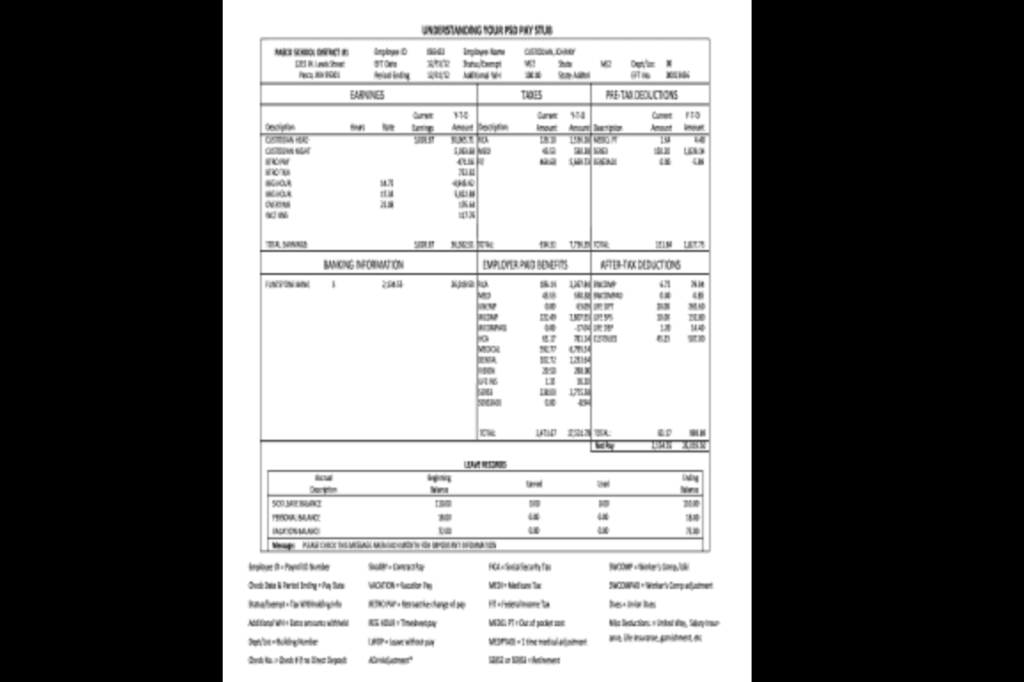
A Cracker Barrel pay stub shows your gross earnings, every deduction taken, and your net take-home pay for that specific pay period. Understanding what each line means helps you catch errors early and keep your tax records accurate.
A standard Cracker Barrel pay stub includes:
- Employee name and ID — your identifying details
- Pay period start and end dates — the exact dates this paycheck covers
- Total hours worked — regular hours and any overtime hours separately
- Hourly rate or salary — your current rate of pay
- Gross earnings — total pay before any deductions
- Federal income tax withheld — based on your W-4 filing status
- State income tax withheld — varies by state
- Social Security deduction — 6.2% of gross wages up to the annual limit
- Medicare deduction — 1.45% of gross wages
- Benefits deductions — health insurance premiums, dental, vision, 401(k) contributions
- Net pay — the amount deposited to your account or paid by check
If any of these figures look wrong — wrong hours, wrong rate, unexpected deduction — do not wait until the next pay period to raise it. Bring it to your manager or HR immediately. Keep your downloaded pay stubs as a personal record to cross-reference. The Cracker Barrel W-2 page explains how your annual W-2 is calculated from these same figures and how to catch discrepancies before tax season.
How Do You Set Up or Change Direct Deposit at Cracker Barrel?
Cracker Barrel employees set up and manage direct deposit through Workday, the same system where you view pay stubs. You can add, change, or remove bank accounts at any time — changes take effect on the next payroll cycle.
How to Set Up Direct Deposit in Workday
- Log in at crackerbarrel.onelogin.com and open Workday
- From the home screen, click the Pay worklet
- Select Payment Elections
- Click Add to enter a new bank account or Edit to update an existing one
- Enter your bank routing number and account number
- Choose whether this is a checking or savings account
- Set the distribution — full amount or a split between accounts
- Click Save — the change will apply to your next paycheck
If your direct deposit is not working — pay is going to an old account or you have not received a deposit — check Payment Elections in Workday first to confirm the account details are correct. If the details are right and the deposit still failed, contact your HR department or call 1-800-333-9566.
How Do You Access Pay Stubs on the Cracker Barrel Mobile App?
Cracker Barrel employees access pay stubs on mobile through the Workday app, available free on both iOS and Android. There is no separate Cracker Barrel Front Porch app — Workday is the correct app to download.
How to Set Up Workday Mobile Access
- Download the Workday app from the App Store (iOS) or Google Play (Android)
- Open the app and tap Sign In
- When prompted for your Organization ID, enter crackerbarrel
- Enter your username and password
- Complete MFA verification if prompted
- Once logged in, tap the Pay menu to access your payslips
The mobile app gives you full access to the same pay stub data you see on desktop — including downloadable PDFs. It also shows your work schedule, benefits, and personal information, making it the most convenient option for employees who do not regularly use a desktop computer.
What Should You Do If Your Pay Stub Is Missing or Wrong?
1. Pay Stub Not Showing in Workday
If a pay stub is missing from Workday, the first thing to check is whether payroll has finished processing for that period. Pay stubs typically appear in Workday on payday or one business day before. If you just got paid and the stub is not there yet, wait until the end of the business day and check again.
If the stub is still missing after payday has passed, log out of Workday completely, clear your browser cache, and log back in. If it is still absent, contact your store manager — they can confirm whether payroll was processed correctly for your location.
2. Pay Stub Shows Wrong Hours or Rate
If your hours or pay rate are incorrect on a pay stub, report it to your manager immediately and ask them to submit a payroll correction. Do not wait — corrections become harder to process the further you get from the pay period in question. Download the incorrect pay stub as a PDF now to keep as documentation.
3. Pay Stub Shows an Unexpected Deduction
New or unexpected deductions are usually one of three things: a benefit enrollment change, a tax withholding adjustment, or a garnishment. Check your Benefits worklet in Workday to see if any elections changed recently. If nothing looks different there and you cannot identify the deduction, call 1-800-333-9566.
4. Cannot Log In to View Pay Stub
If you cannot get into Workday to access your pay stub, the reasons can be wrong URL, forgotten password, locked account, MFA not working, and new hire activation delays. The correct login URL is always crackerbarrel.onelogin.com.
Can Former Cracker Barrel Employees Access Old Pay Stubs?
Former Cracker Barrel employees can often still log into Workday to access past pay stubs for a limited time after leaving. Try logging in at crackerbarrel.onelogin.com with your old credentials first — many former employees find their access is still active, at least for retrieving payroll records.
If your login has expired and you need a specific pay stub for income verification, call the payroll department at 1-800-333-9566. For tax-related needs, your W-2 contains a summary of your annual earnings and may serve the same purpose as individual pay stubs. The Cracker Barrel W-2 and wage statements guide covers how former employees retrieve their W-2 even after Workday access expires.