
Cracker Barrel employees access Workday through OneLogin at crackerbarrel.onelogin.com — not through crackerbarrel.com, not through the old frontporchselfservice.crackerbarrel.com, and not through a general Workday search. The login path is specific, and going to the wrong URL is the single most common reason employees cannot get in.

This guide covers what Workday actually is once you are inside, how to navigate the dashboard for the first time, how to set up your account as a new hire, how the OneLogin SSO system works, and how to reset your Workday password when the standard method fails. For the basic six-step login walkthrough, check the Cracker Barrel Front Porch employee portal guide. This page goes deeper — into what happens after you log in and the account setup questions the homepage does not have room to answer.
What Is Workday and Why Does Cracker Barrel Use It?
Workday is a cloud-based enterprise HR platform that Cracker Barrel uses to manage payroll, benefits, scheduling, and employee records for its entire U.S. workforce. It replaced the original Front Porch Self-Service system in June 2022.
Before Workday, Cracker Barrel ran Front Porch as a custom-built employee portal alongside separate systems for payroll processing, benefits administration, and scheduling. Managing those systems independently created overhead, inconsistency, and access problems — especially for a company operating hundreds of locations across the country.
Workday consolidates everything into one platform. A server in Nashville and a cook in Phoenix are both looking at the same system, with the same interface, governed by the same security standards. For employees, this means one login, one place to find every piece of HR information, and one app on your phone.
Cracker Barrel is not Workday’s only client — Workday serves thousands of companies. This matters because when you download the Workday mobile app or visit workday.com, you are not automatically in Cracker Barrel’s system. You have to reach it specifically through crackerbarrel.onelogin.com, which routes you into Cracker Barrel’s private Workday environment.
What Is OneLogin and How Does It Connect to Workday?
OneLogin is a Single Sign-On (SSO) system that acts as the secure gateway between Cracker Barrel employees and Workday. Instead of logging directly into Workday with a Workday-specific password, you log into OneLogin once — and it authenticates you and passes you through to Workday automatically.
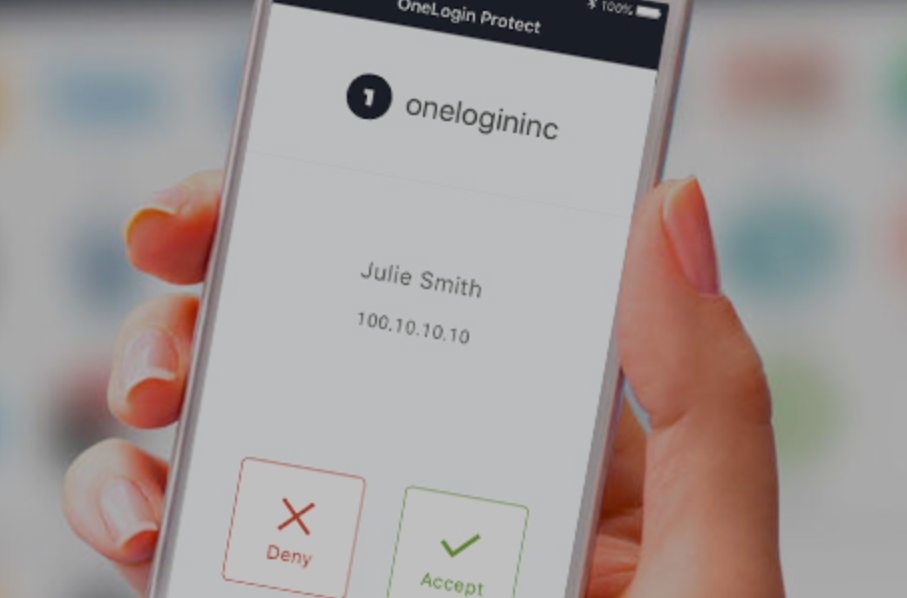
This setup exists for two reasons. First, security — OneLogin adds multi-factor authentication and centralised access control, so Cracker Barrel’s IT team can manage who has access to what without touching Workday’s internal settings directly. Second, convenience — if Cracker Barrel ever adds other connected tools to the ecosystem, you would access all of them through the same OneLogin credentials without creating separate accounts.
In practical terms, the flow works like this:
You → crackerbarrel.onelogin.com → MFA verification → Workday dashboard
Your OneLogin credentials (username and password) are your Cracker Barrel credentials. They are issued by Cracker Barrel, not by Workday. If you need to reset your password or your account gets locked, you are dealing with the OneLogin layer — not Workday directly. This is an important distinction covered in the troubleshooting section below.
How Do New Hires Set Up Their Cracker Barrel Workday Account?
New Cracker Barrel employees receive their OneLogin credentials during onboarding — typically on their first day or within 24–48 hours of their start date. The credentials are either handed to you in person by your store manager or sent to the personal email address you provided during the hiring process.

First-Time Login Steps for New Hires
- Check your personal email for a welcome message from Cracker Barrel or OneLogin — it contains your username and a temporary password or a link to set your password
- Go to crackerbarrel.onelogin.com in a browser
- Enter your username — usually your employee ID number or a corporate email address in the format [email protected]
- Enter the temporary password from the welcome email
- You will be prompted to create a new password — choose something you have not used elsewhere, at least 8 characters, with a mix of letters, numbers, and symbols
- Set up multi-factor authentication (MFA) — you will be asked to register a phone number or authenticator app to receive verification codes
- Once MFA is configured, you land on the OneLogin dashboard — click the Workday tile to enter Workday for the first time
- Workday will walk you through any onboarding tasks assigned to your account — these may include confirming personal information, selecting benefits if you are in an enrollment window, and reviewing company policies
If you did not receive a welcome email and it has been more than two business days since your start date, ask your store manager to confirm your email address is correctly entered in the HR system and to re-trigger the account invitation.
What If Your New Hire Account Is Not Working?
New hire account issues almost always fall into one of three categories. The activation email went to a spam folder — check there first. The email address on file is wrong — your manager can verify and correct it in the HR system. The account has not been activated yet — HR processes new accounts in batches, and there can be a 24–48 hour delay after your paperwork is submitted.
If none of those apply and it has been more than three business days, call 1-800-333-9566 and tell them you are a new hire whose Workday account has not activated. They can escalate it directly.
How Do You Navigate the Workday Dashboard After Logging In?
The Workday dashboard is organised into worklets — square icons that each lead to a different area of your employee information. When you log in for the first time, the layout can feel unfamiliar if you have never used Workday at another company. Here is what each key worklet does.
The Main Workday Worklets for Cracker Barrel Employees
1. Pay worklet — This is where you find everything money-related. Pay stubs (called Payslips in Workday), W-2 and tax documents, direct deposit setup under Payment Elections, and year-to-date earnings summaries. The Cracker Barrel paystub page covers this worklet in full detail.
2. Benefits worklet — Health insurance, dental, vision, life insurance, and 401(k) enrollment all live here. During open enrollment or after a qualifying life event, this is where you make your elections. Outside of enrollment windows, you can view your current coverage but not change it.
3. Time worklet — Clock in and out, view your timesheet, submit corrections for missed punches, and check your paid time off (PTO) balance. The full scheduling process — including time-off requests, PTO accrual, and clocking in and out — is covered in the Cracker Barrel scheduling and time-off guide. Some locations use physical time clocks that sync to Workday automatically — others require employees to clock in through the Workday app.
4. Absence worklet — Request vacation time, submit sick leave, and track the status of pending requests. Your available PTO balance is shown here and updates in real time as requests are approved.
5. Personal Information worklet — Update your home address, phone number, emergency contacts, and legal name. Keeping this current matters — your W-2 is mailed to the address on file if you opt for paper delivery, and your MFA codes go to the phone number listed here.
6. Career worklet — Internal job postings, performance reviews, and development goals. If you are interested in moving into a management role, this is where internal opportunities appear. Cracker Barrel also runs periodic employee satisfaction surveys separate from Workday — see the Cracker Barrel employee survey page for how those work.
7. Directory worklet — Search for other Cracker Barrel employees and managers by name or location. Useful for new hires trying to find contact information for HR or district management.
For a complete breakdown of what each worklet does in practice — including pay stubs, benefits, training, compliance certifications, and the company directory — see the complete Workday features guide.
How Do You Reset Your Cracker Barrel Workday Password?
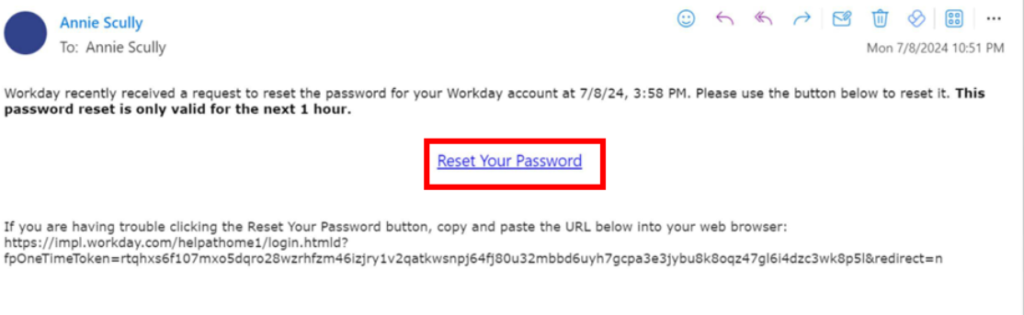
Cracker Barrel Workday password resets are handled through OneLogin, not through Workday itself — because your password belongs to the OneLogin layer, not to Workday directly. Going to Workday’s own password reset page will not work for Cracker Barrel employees.
Self-Service Password Reset
- Go to crackerbarrel.onelogin.com
- Click Forgot Password below the login fields
- Enter your username or registered email address
- OneLogin sends a reset link to your registered email — check spam if it does not arrive within five minutes
- Click the link and follow the prompts to create a new password
- Log back in with your new password and complete MFA as normal
When Self-Service Reset Does Not Work
The self-service reset fails when the email address on file is no longer accessible — a previous personal email, a phone number that has changed, or an MFA device that has been lost or replaced. In these cases:
- Contact your store manager — they can submit a password reset request through HR on your behalf
- Call 1-800-333-9566 — the support line can verify your identity and reset your credentials manually
- For MFA device issues specifically — if you lost access to the phone registered for MFA codes — HR must update the registered number in the system before any reset will work. There is no way around this step.
Why Does crackerbarrel.com Not Have an Employee Login?
The main Cracker Barrel website at crackerbarrel.com is a customer-facing site — it has restaurant locations, menus, gift cards, and retail shopping. There is no employee login portal there, and searching for one on that site will not find anything useful.
Searches like www.crackerbarrel.com employee login, crackerbarrel.com login, and employees.crackerbarrel.com all reflect the same confusion — employees expecting to find a login on the main company website. The employee portal has always been on a separate domain.
The only active employee login URL is crackerbarrel.onelogin.com. Bookmark it directly rather than navigating to it through crackerbarrel.com each time.
What Is the Cracker Barrel Background Check Login?
The Cracker Barrel background check portal is a separate pre-employment system used only during the hiring process — it is not connected to Workday or OneLogin and is not something current employees use.
Job applicants receive a link to the background check portal (typically run through a third-party provider like First Advantage or Sterling) in their offer email. You log in through that specific link, complete the consent forms, and the process runs automatically. Once the background check is complete and your start date is confirmed, your Workday account is set up separately.
If you are a current employee who received a background check re-verification request — this sometimes happens for employees moving into management roles — the link will come directly from HR via email and will be specific to that process. It is not accessed through Workday or OneLogin.
Workday Login on Mobile — Full Setup Guide
The Workday mobile app gives Cracker Barrel employees full access to their HR dashboard from any smartphone, including pay stubs, time tracking, PTO requests, and benefits. It is available free on iOS and Android.
How to Set Up the Workday App for Cracker Barrel
- Download Workday from the App Store (iOS) or Google Play (Android) — search for “Workday” and install the official app by Workday, Inc.
- Open the app and tap Sign In
- At the “What’s your organization’s name?” prompt, type crackerbarrel — this is critical, without the correct org ID the app cannot connect to Cracker Barrel’s system
- Enter your OneLogin username and password
- Complete MFA verification — the app will ask for your authentication code
- You are now inside Cracker Barrel’s Workday environment on mobile
The mobile app has the same worklets as the desktop version — Pay, Benefits, Time, Absence, and Personal Information. The Time worklet on mobile also allows you to clock in and out if your location uses mobile time tracking.
For pay-stub-specific mobile instructions — including how to download a PDF from the app — the Cracker Barrel paystub guide has that detail. For wage statements if your location uses CBOCS instead of Workday, see the online wage statements CBOCS guide.